
Read DVP data into the spatialdata format#
In this tutorial, we will read DVP data into the spatialdata format using DVP IO. We assume that cell segmentation was performed, e.g. in cellpose, and that the segmentation masks were processed and vectorized in BIAS and exported as LMD-compatible .xml files. We can now use spatialdata to further explore the data interactively, select shapes, etc.
Installation#
## Uncomment the following lines if you still need to create a suitable environment etc.
# conda create -n dvpio python=3.11 -y && conda activate dvpio
# pip install dvp-io
Get data#
We can get some mock data. Feel free to adjust the path to a suitable location
Dataset#
The mock data contains an image, segmented shapes in the LMD .xml file format, and the ground truth for the generation of the shapes as .geojson for comparison.
mock-data/blobs
images
binary-blobs.tiff
shapes
all_tiles_contours.xml
middle_tiles_contours.xml
ground_truth
binary-blobs.segmentation.geojson
# %%capture
# %%bash
# downloadpath="./mock-data"
# mkdir -p $downloadpath
# wget -O $downloadpath/blobs.zip "https://datashare.biochem.mpg.de/s/0oTGB6xpUaWIaVh/download"
# unzip -d $downloadpath $downloadpath/blobs.zip
# rm $downloadpath/blobs.zip
Read with DVP IO#
We will now try to read in the data to the spatialdata format. This involves the following steps:
Generate spatialdata object
Read image
Read calibration points
Read segmentation masks and align via calibration points
Optional: Write spatialdata
import spatialdata
import spatialdata_plot  # noqa
from napari_spatialdata import Interactive  # noqa
from dvpio.read.image import read_custom
from dvpio.read.shapes import read_lmd
Initialize spatialdata#
First, we initialize an empty spatialdata object
sdata = spatialdata.SpatialData()
sdata
SpatialData object
with coordinate systems:
Read image#
Then, we read an image. In this case, we are dealing with a tiff file, so we will be using the dvpio.image.read_custom function that natively supports tiff images. The function parses the file directly into the spatialdata-compatible format, so that you can just add it to the spatialdata.image attribute
Alternative readers#
If you were working with .czi files, you would instead use the read_czi reader function. Similarly, you would use the read_openslide reader for openslide compatible whole slide images.
img = read_custom("./mock-data/blobs/images/binary-blobs.tiff")
img
INFO no axes information specified in the object, setting `dims` to: ('c', 'y', 'x')
<xarray.DataArray 'image' (c: 1, y: 1024, x: 1024)> Size: 8MB
dask.array<getitem, shape=(1, 1024, 1024), dtype=float64, chunksize=(1, 1024, 1024), chunktype=numpy.ndarray>
Coordinates:
  * c        (c) int64 8B 0
  * y        (y) float64 8kB 0.5 1.5 2.5 3.5 ... 1.022e+03 1.022e+03 1.024e+03
  * x        (x) float64 8kB 0.5 1.5 2.5 3.5 ... 1.022e+03 1.022e+03 1.024e+03
Attributes:
transform: {'global': Identity }We can now add the image to the spatialdata.images attribute
# Assign to spatialdata.images slot
sdata.images["blobs"] = img
sdata
SpatialData object
└── Images
      └── 'blobs': DataArray[cyx] (1, 1024, 1024)
with coordinate systems:
    ▸ 'global', with elements:
        blobs (Images)
Identify calibration points#
To align the image with the segmented cells, we need to pick the calibration points in the image. We can do this interactively in the Napari Viewer.
The calibration points are small squares in the bottom left, top left, and top right corner of the image.
## Uncomment to run
# interactive = Interactive(sdata)
# interactive.add_element("blobs", element_coordinate_system="global")
# interactive.run()
Picking calibration points#
Create a new
pointslayer in the napari viewer.Recommended: Rename the layer to a more expressive name, e.g.
calibration_points_imageSelect the 3 calibration points. Currently, you have to pick them in the correct order, as they are defined in the lmd/.xml file. (Here: 1. bottom left, 2. top left, 3. top right)
Save the layer by clicking
Shift+ELeave the napari viewer.
The calibration points were added to the shapes attribute of the spatialdata object

# Uncomment to assign ground truth values
import numpy as np

sdata.points["calibration_points_image"] = spatialdata.models.PointsModel.parse(
    np.array([[15, 1015], [15, 205], [1015, 15]])
)
sdata
SpatialData object
├── Images
│     └── 'blobs': DataArray[cyx] (1, 1024, 1024)
└── Points
      └── 'calibration_points_image': DataFrame with shape: (<Delayed>, 2) (2D points)
with coordinate systems:
    ▸ 'global', with elements:
        blobs (Images), calibration_points_image (Points)
Read segmentation masks from LMD .xml#
You can now load the segmentation masks from the LMD formatted .xml file, using the designated read_lmd function. The function returns a geopandas.GeoDataFrame that can be immediately passed to the spatialdata.shapes attribute
sdata.shapes["segmentation_masks"] = read_lmd(
    "./mock-data/blobs/shapes/all_tiles_contours.xml",
    calibration_points_image=sdata.points["calibration_points_image"],
    switch_orientation=False,
)

sdata.shapes["segmentation_masks"]
| name | well | geometry | |
|---|---|---|---|
| 0 | Shape_1 | None | POLYGON ((-0.603 0.518, -0.603 1.518, -0.603 2... |
| 1 | Shape_2 | None | POLYGON ((-0.603 120.518, -0.603 121.518, -0.6... |
| 2 | Shape_3 | None | POLYGON ((9.397 200.518, 9.397 201.518, 9.397 ... |
| 3 | Shape_4 | None | POLYGON ((38.397 219.518, 37.397 220.518, 36.3... |
| 4 | Shape_5 | None | POLYGON ((143.397 334.718, 142.397 335.718, 14... |
| ... | ... | ... | ... |
| 57 | Shape_58 | None | POLYGON ((729.997 410.718, 728.997 411.718, 72... |
| 58 | Shape_59 | None | POLYGON ((824.997 422.718, 823.997 423.718, 82... |
| 59 | Shape_60 | None | POLYGON ((859.997 590.918, 858.997 591.918, 85... |
| 60 | Shape_61 | None | POLYGON ((944.997 863.118, 943.997 864.118, 94... |
| 61 | Shape_62 | None | POLYGON ((261.597 614.918, 260.597 615.918, 25... |
62 rows × 3 columns
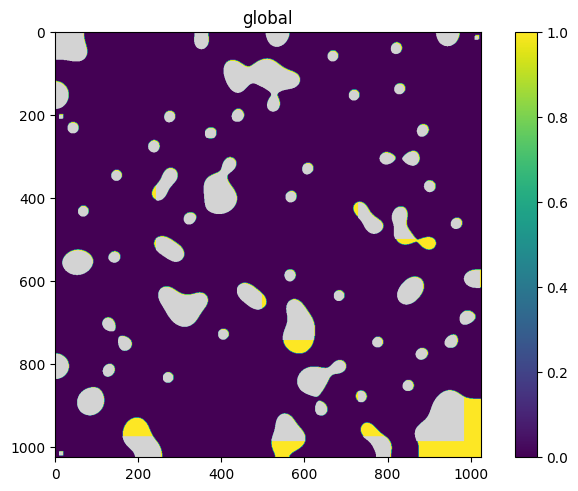
We can now inspect the results as static images or in a dynamic Napari session. We see that the segmentation masks and blobs overlay reasonably well.
sdata.pl.render_images("blobs").pl.render_shapes("segmentation_masks").pl.show(coordinate_systems="global")
Write#
If you would like to keep a persistent copy of your spatialdata object on disk, use the write functionality:
sdata.write("./mock-data/blobs/sdata/my_sdata.zarr")
INFO The Zarr backing store has been changed from None the new file path: mock-data/blobs/sdata/my_sdata.zarr