
Spatialdata - A quick introduction#
This tutorial provides a quick overview over key functionalities of the spatialdata format. This includes
Data modalities
Plotting, and
Visualization in napari image viewers.
For detailed explanations and tutorials, check out the official documentation
Getting started#
In the following, we will just explore the spatialdata format a little more. Note that you should also checkout the official documentation documentation, and especially the tutorials on the spatialdata format
and spatialelements
Modules#
import numpy as np
import shapely
import geopandas
import matplotlib.pyplot as plt

import spatialdata as sd
from spatialdata.models import Image2DModel

import spatialdata_plot
from napari_spatialdata import Interactive
%%capture
spatialdata_plot
Data#
Let’s get a built-in mock dataset from spatialdata
sdata = sd.datasets.blobs(extra_coord_system="second_coordinate_system")
Read/Write#
Spatialdata has a native on-disk format, based on the .zarr standard, that can be used to store the data. De-facto, .zarr stores all data in a directory with subdirectories and specific metadata files. (.zattrs)
path = "/path/to/file/"

# Write spatialdata
sdata.write(path)

# Read spatialdata
sdata = sd.read_zarr(path)
Access attributes#
Let’s explore the structure of the spatialdata object. You can see that the dataset contains multiple attributes
sdata
SpatialData object
├── Images
│     ├── 'blobs_image': DataArray[cyx] (3, 512, 512)
│     └── 'blobs_multiscale_image': DataTree[cyx] (3, 512, 512), (3, 256, 256), (3, 128, 128)
├── Labels
│     ├── 'blobs_labels': DataArray[yx] (512, 512)
│     └── 'blobs_multiscale_labels': DataTree[yx] (512, 512), (256, 256), (128, 128)
├── Points
│     └── 'blobs_points': DataFrame with shape: (<Delayed>, 4) (2D points)
├── Shapes
│     ├── 'blobs_circles': GeoDataFrame shape: (5, 2) (2D shapes)
│     ├── 'blobs_multipolygons': GeoDataFrame shape: (2, 1) (2D shapes)
│     └── 'blobs_polygons': GeoDataFrame shape: (5, 1) (2D shapes)
└── Tables
      └── 'table': AnnData (26, 3)
with coordinate systems:
    ▸ 'global', with elements:
        blobs_image (Images), blobs_multiscale_image (Images), blobs_labels (Labels), blobs_multiscale_labels (Labels), blobs_points (Points), blobs_circles (Shapes), blobs_multipolygons (Shapes), blobs_polygons (Shapes)
    ▸ 'second_coordinate_system', with elements:
        blobs_image (Images), blobs_multiscale_image (Images), blobs_labels (Labels), blobs_multiscale_labels (Labels), blobs_points (Points), blobs_circles (Shapes), blobs_multipolygons (Shapes), blobs_polygons (Shapes)
You can access these attributes as class attributes (output hidden)
%%capture
# Access `images`
sdata.images
Their contents behave like a dictionary (output hidden)
%%capture
# Access the `blobs_image` layer in `.images`
sdata.images["blobs_image"]
Images#
Images are stored as xarray.DataArrays (or, in case of pyramidal/multiscale images as xarray.DataTree). xarray supports the lazy loading of data via its dask interface, i.e. it only loads the parts of the image that are required for your computations. This allows users to access imaging data that is significanly larger than their memory.
type(sdata.images["blobs_image"])
xarray.core.dataarray.DataArray
Images have the dimensions \((c, y, x)\), where \(c\) is the number of channels (e.g \(c=3\) for RGB images, \(c=C\) for \(C\) different fluorescence channels), \(y\) the number of rows, and \(x\) the number of columns.
sdata.images["blobs_image"]
<xarray.DataArray 'image' (c: 3, y: 512, x: 512)> Size: 6MB
dask.array<array, shape=(3, 512, 512), dtype=float64, chunksize=(3, 512, 512), chunktype=numpy.ndarray>
Coordinates:
  * c        (c) int64 24B 0 1 2
  * y        (y) float64 4kB 0.5 1.5 2.5 3.5 4.5 ... 508.5 509.5 510.5 511.5
  * x        (x) float64 4kB 0.5 1.5 2.5 3.5 4.5 ... 508.5 509.5 510.5 511.5
Attributes:
transform: {'global': Identity , 'second_coordinate_system': Identity }Visualise#
Let’s plot the image
sdata.pl.render_images("blobs_image").pl.show(coordinate_systems="global")

Shapes#
Shapes represent vectorized annotations. This means that each shape is defined as a set of points in a coordinate space. For example to define a small triangle as vectorized shape, you would define it with 4 points (3 unique points and 1 point to close the loop):
(Pseudocode) triangle := { Point1(0, 0), Point2(1, 0), Point3(0, 1), Point4(0, 0) }
Spatialdata stores such vectorized annotations in its .shapes attribute. The shapes attribute can store different types of shapes, including Polygons (arbitrary shapes) and Points. The shapes attribute can store multiple distinct and independent spatial elements.
# Access shapes (3 independent elements: 'blobs_circles', 'blobs_polygons', 'blobs_multipolygons')
list(sdata.shapes.keys())
['blobs_circles', 'blobs_polygons', 'blobs_multipolygons']
Each spatialelement is represented as geopandas.GeoDataFrame
sdata.shapes["blobs_polygons"]
| geometry | |
|---|---|
| 0 | POLYGON ((340.197 258.214, 316.177 197.065, 29... |
| 1 | POLYGON ((284.141 420.454, 267.249 371.319, 25... |
| 2 | POLYGON ((203.195 229.528, 285.506 204.414, 19... |
| 3 | POLYGON ((240.46 196.846, 227.206 188.623, 149... |
| 4 | POLYGON ((446.703 349.433, 421.086 258.9, 369.... |
Let’s plot the data
(
    sdata.pl.render_shapes("blobs_circles", alpha=0.5, color="#16A085")  # green
    .pl.render_shapes("blobs_polygons", alpha=0.5, color="#2980B9")  # blue
    .pl.render_shapes("blobs_multipolygons", alpha=0.5, color="#cccccc")  # gray
    .pl.show(coordinate_systems="global")
)
INFO     Value for parameter 'color' appears to be a color, using it as such.
INFO     Value for parameter 'color' appears to be a color, using it as such.
INFO     Value for parameter 'color' appears to be a color, using it as such.

Background - Shapes representation in spatialdata#
shapely#
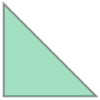
spatialdata uses shapely to define the shapes. We can define our own shape
triangle = shapely.Polygon([[0, 0], [1, 0], [0, 1], [0, 0]])
triangle
geopandas#
Spatialdata stores multiple shape annotations as geopandas.GeoDataFrame.
geopandas.GeoDataFrames behave exactly like a pandas dataframe, except that they support spatial data in a designated geopandas.GeoSeries column (usually denoted with geometry)
We can add the previously defined shape to a geopandas dataframe:
geodf = geopandas.GeoDataFrame(data={"name": ["triangle", "triangle2"]}, geometry=[triangle, triangle])
geodf
| name | geometry | |
|---|---|---|
| 0 | triangle | POLYGON ((0 0, 1 0, 0 1, 0 0)) |
| 1 | triangle2 | POLYGON ((0 0, 1 0, 0 1, 0 0)) |
# Geopandas behaves like pandas. E.g. Select the first row in the geodataframe
geodf.iloc[[0]]
| name | geometry | |
|---|---|---|
| 0 | triangle | POLYGON ((0 0, 1 0, 0 1, 0 0)) |
Tables#
Tables are used in spatialdata to store omics modalities. Under the hood, tables are represented by an anndata object. Anndata is commonly used to store -omics data as it provides functionalities to jointly anlayse the actual measurements and associated metadata.
!!! Tables support by DVP IO#
DVP IO does currently not provide reading functionalities for proteomics data. This feature will be introduced in early 2025
sdata.tables["table"]
AnnData object with n_obs × n_vars = 26 × 3
    obs: 'instance_id', 'region'
    uns: 'spatialdata_attrs'
Get observation-specific metadata
adata = sdata.tables["table"]

adata.obs.head()
| instance_id | region | |
|---|---|---|
| 1 | 1 | blobs_labels |
| 2 | 2 | blobs_labels |
| 3 | 3 | blobs_labels |
| 4 | 4 | blobs_labels |
| 5 | 5 | blobs_labels |
Get variable-specific metadata
adata.var.head()
| channel_0_sum |
|---|
| channel_1_sum |
| channel_2_sum |
Assigning values#
We can also add new attributes to a spatialdata object. To assure the compatibility of data with its format, spatialdata implements spatialdata.models classes, that define required attributes and processing rules for the different types of data. To assign a new object to spatialdata, we need to parse it with the suitable model class. For details, please see
Example#
Say, that we would like to add another image to our spatialdata object. Let’s define a small 100 px x 100px RGB image (all white) as array and pass it to spatialdata.
# Define new image (all white, 3 channels [RGB])
new_image = np.ones(shape=(100, 100, 3))
We cannot immediately assign this image to spatialdata. This will fail:
try:
    # This code block fails
    sdata["new_image"] = new_image
except TypeError as e:
    print(f"TypeError: {e}")
TypeError: Unsupported type <class 'numpy.ndarray'>
Instead, we first have to parse the image with the designated model class spatialdata.models.Image2DModel
new_image_parsed = Image2DModel.parse(
    new_image,
    dims=("x", "y", "c"),  # define axes of image (x, y, channels)
    c_coords=("r", "g", "b"),  # optional: name channels
)


# Assign image to existing spatialdata, this works
sdata.images["new_image"] = new_image_parsed
INFO Transposing `data` of type: <class 'dask.array.core.Array'> to ('c', 'y', 'x').
We have to proceed similarly for other attributes
.tables:
spatialdata.models.TableModel.shapes:
spatialdata.models.ShapesModel
Plotting#
As showcased above, spatialdata implements plotting functionalities that allow you to visualize your omics dataset in static images. To do so, spatialdata relies on its extension package spatialdata_plot. Make sure to check out its documentation
spatialdata_plot can be used by employing the .pl accessor, followed by a render_<attribute> command.
To show the final plot, call .pl.show()
(sdata.pl.render_images().pl.render_shapes().pl.show(coordinate_systems="global"))

Interactive viewing in Napari#
You can inspect the data in napari using the napari_spatialdata plugin. For details, take a look at the official documentation
# Start session
interactive = Interactive(sdata)

# # Basic viz:
interactive.add_element("blobs_image", element_coordinate_system="global")
interactive.add_element("blobs_circles", element_coordinate_system="global")
interactive.add_element("blobs_labels", element_coordinate_system="global")


# If you would like to explore it locally, uncomment the following line:
# interactive.run()

# Visualize screenshot
screenshot = interactive.screenshot()
plt.imshow(screenshot)
plt.axis("off")
(np.float64(-0.5), np.float64(3023.5), np.float64(1885.5), np.float64(-0.5))
